Archive for 2011

The new version of Skype with Facebook included!

The new version of Skype (5.5) just released and integrates Facebook and Skype. As you will recall that recently drew up an agreement.

In the new version of the program a tab was added that allows you to connect to your Facebook profile and chat with friends online without a Skype call and video. You can even see your wall, the news feed from your Facebook, comment and click "like", all without having to open your browser and go to Facebook.

.

How to insert emoticons and animated gifs on Facebook

Want to publish cartoons and emoticons in your status updates of your friends or on message boards? Follow us and we will explain how.

Just use the application Animated Pictures , which offers hundreds of animated GIFs, animated smileys and emoticons, the ability to incorporate music and much more!

After approving the application here: http://apps.facebook.com/animated-picture/ you will see the tab with the animated gifs you can put on your wall, on your friends wall, fan pages, groups and events (select from the drop-down menu "Friend's wall" to friends, or "Groups / Fan Pages / Events" to publish to groups, fan pages or bulletin board of events)

How to remove phone numbers from Facebook

f you have a phone or device, like the iPhone / Android iPad or use the Facebook application and mobile access to Facebook, then you should know that by activating the address book synchronization with Facebook contacts that automatically picks up all your numbers from your address book and loads them on your Facebook profile ... and with no privacy!

To delete them must go to edit friends http://www.facebook.com/friends/ to the left and click on Contact. Alternatively, here's the direct link: http://www.facebook.com/friends/edit/?sk=phonebook . In the right column should read this text:


"The page shows the contacts that you imported from your mobile phone and your Facebook friends.

How to be notified when a friend changes jobs

Today we show you how to be notified when a friend changes the information related to work, if they add a new job, if it's modified, or if you get a promotion and so on.

The service is called CareerNotify and it operates very similar to Breakup Alert. After clicking "Connect with Facebook" and authorizing the application, the service will monitor the friends you select and send you an email whenever their profile information relating to their work is changed.

The service is free and anonymous, of course, so your friends do not find out you are monitoring them!

Site: http://careernotify.com/

How to discover the secret list of friends you visit the most on Facebook!

How many times have you wanted to find out the people you interact with the most? What are the most spied on people, those that are in your thoughts, without which your Facebook would not be the same again.

Just install a bookmarklet in your browser to discover the secret list of friends you spy on the most on Facebook .(And yes, because the procedure is simple, you can make the profile of a friend or family member if you connect from your computer and find friends that he / she visits more!)

Everything you need to do is drag this link on your bookmarks bar. Click on the link with the left mouse button and hold it, drag it to the bookmarks bar, or under the address bar of your browser.

The bookmark you just created is nothing but a java code which when executed will generate the secret list of friends.

What we now need to do is go on Facebook and click on that bookmark. You will see this pop on your screen when you click on the list (see image):

In the list you will notice several names of friends on Facebook and numbers on the right, those higher up are the ones you spy on most.

The score is created based on the interactions made with that friend, and comments visits, likes, etc.

NOTE: The trick is tested on Firefox, Safari and Chrome. If it does not work on Chrome tried to create a new bookmark and put the URL code .

If you have the secure connection enabled on Facebook (https) you should disable it, otherwise the trick will not work.

More information about the author's site make-up (link below).

How to publish Facebook art

Art for Facebook, refers to ASCII art on Facebook, or drawings created with all those symbols and special characters in ASCII or Unicode characters to copy and paste to message boards, in comments or in messages.

Just a few days ago we reported how to insert emoticons and animated emoticons to Facebook , using a unique application that allows you to publish, among other things emoji and advanced emoticons.

These applications allow you to publish emoji precisely but we can not tell if they will work forever. Facebook had such hidden emoji until recently but now has re-activated and these are visible on all browsers and even on the latest mobile phones.

The page that we announce today is Ғасєвффк Әят: http://www.facebook.com/2share that allows you to share the post (link) published on your message boards, in messages or on message boards of your friends. On the page you will find hundreds of drawings made ​​with the Art quick, animated, colorful and flashing.


How to change login screen background

If you are tired of the same old login screen on Facebook and you want to customize it just like the desktop of your computer then you must try this extension for Google Chrome that lets you change the background image at the login to facebook.com

Once you've installed the extension go to the list of extensions (the wrench at the top right, tools, extensions), try FB Login Screen Changer and click on "options". You can enter the URL of the background choice and set whether to repeat horizontally or vertically.

At this point, after logging out of Facebook, visiting the site you should display your background image.

Hide Your Online Status on Facebook Chat from Select Contacts

If you are connected with too many people on Facebook and need to hide your online status on Facebook Chat from certain contacts, here's some help.


Facebook has integrated friends list with Chat and you can also choose which of these list members get to see you online.
So you can stay visible to your family members and close friends while the rest of your Facebook friends won't know if you are logged into Facebook.
Earlier you had to completely turn off Facebook chat in order to hide your online status from other contacts.
The Facebook chat window has easy sliders so you can easily toggle your online status for any friends list in a click.

How to Display Selected Pictures Only on your Facebook Profile Page

A little-known feature in Facebook that lets you decide who shows up in that Friends box. Click that "edit" pencil in your Friends box and type the names of your best friends in the box that says "Always show these friends"

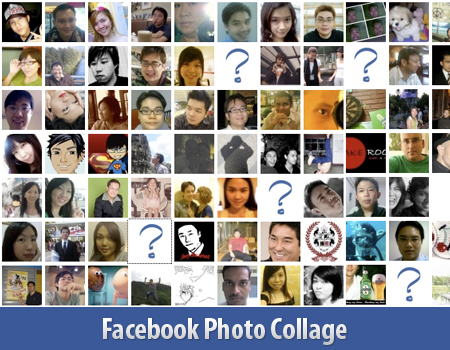
Create Photo Collage/Grid-View Of Your Facebook Friends


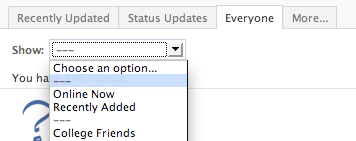
Here’s a small little trick in Facebook that allows you to create a grid view or photo collage out of your friends list. This is how I do it:

1. Click on Friends tab.
2. Proceed to More tab.
3. From "Choose an option" dropdown

How to “Friend” Someone on Facebook & Hide It From Your Status Updates

I’m sure that this has happened to you before. Someone you have ties to, whether it’s a co-worker, your boss, or even worse, a parent, has finally discovered social networking and wants to be your newest Facebook friend.
For me personally, that’s no big deal. I’m fairly open about my online activities. Everything I write, Digg, or otherwise share goes through my FriendFeed to my Twitter then ultimately onto my Facebook (my, that sounds naughty). Besides that, just about everyone I’d consider a co-worker is already on Facebook, and would have little issue about my other Internet activities.
Putting all that aside however, imagine for a moment that I worked at Domino’s Pizza and that I don’t want my boss to know that I just became a fan of Papa John’s (writing this one’s gonna make me hungry). Here’s what I would do to hide Facebook status updates and keep that fact confined to my closer friends:
On your Facebook home page, you should see the ‘Settings’ menu close to the search field on your upper-right. Open that menu and go to ‘Privacy Settings’.


On the next page, you’ll have four choices: Profile, Search, News Feed, and Applications. What you’ll want to edit here are your Profile privacy settings.


By default, everything on your profile is limited to your Friends and your Networks (your first Network is likely your city of residence, but you may have joined more). From the screenshot above, you can see that I’ve limited everything on my profile to my Friends and their Friends. Anyone else who visits my profile will only see that I have a profile, but will not see what’s on it.

You may want to tweak your overall privacy setting here, but what we’re aiming for is the “Except These People” list at the bottom of this dialog. Type out the name of any of your Friends to restrict that person from viewing anything in your Status Updates.
For all you faithful Facebook fans, we’ve got a lot of tips and tricks on how to make the most of the site. If you have any privacy tips or concerns to share, please drop them in a comment. I’m off to order pizza.

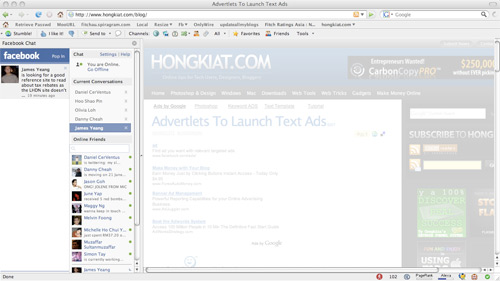
How to Place Facebook Chat On Firefox Sidebar

Facebook Chat is cool, at least it allows you to send instant messages to online Facebook contacts. However I’m not really a fan of the chat bar being at the bottom of the page, what if I’ve left Facebook but still wants to remain chatting with my Facebook contacts? If you are using Firefox, you can place the Facebook Chat at the sidebar
Step 1
Look for Bookmarks on the top navigation. Select Organize Bookmarks…
Step 2

Click New Bookmark... tab and enter the following:

* Name: Facebook Chat
* Location: http://www.facebook.com/presence/popout.php
* Check Load this bookmark in sidebar
Step 3

Launch the Firefox sidebar, click Facebook Chat and start chatting with your Facebook contacts within Firefox